A walkthrough of navigating committees and submitting comments on ISO/TC 347 documents
1Navigate to the ISO Documents portal.
The dashboard lists the committees visible to you.
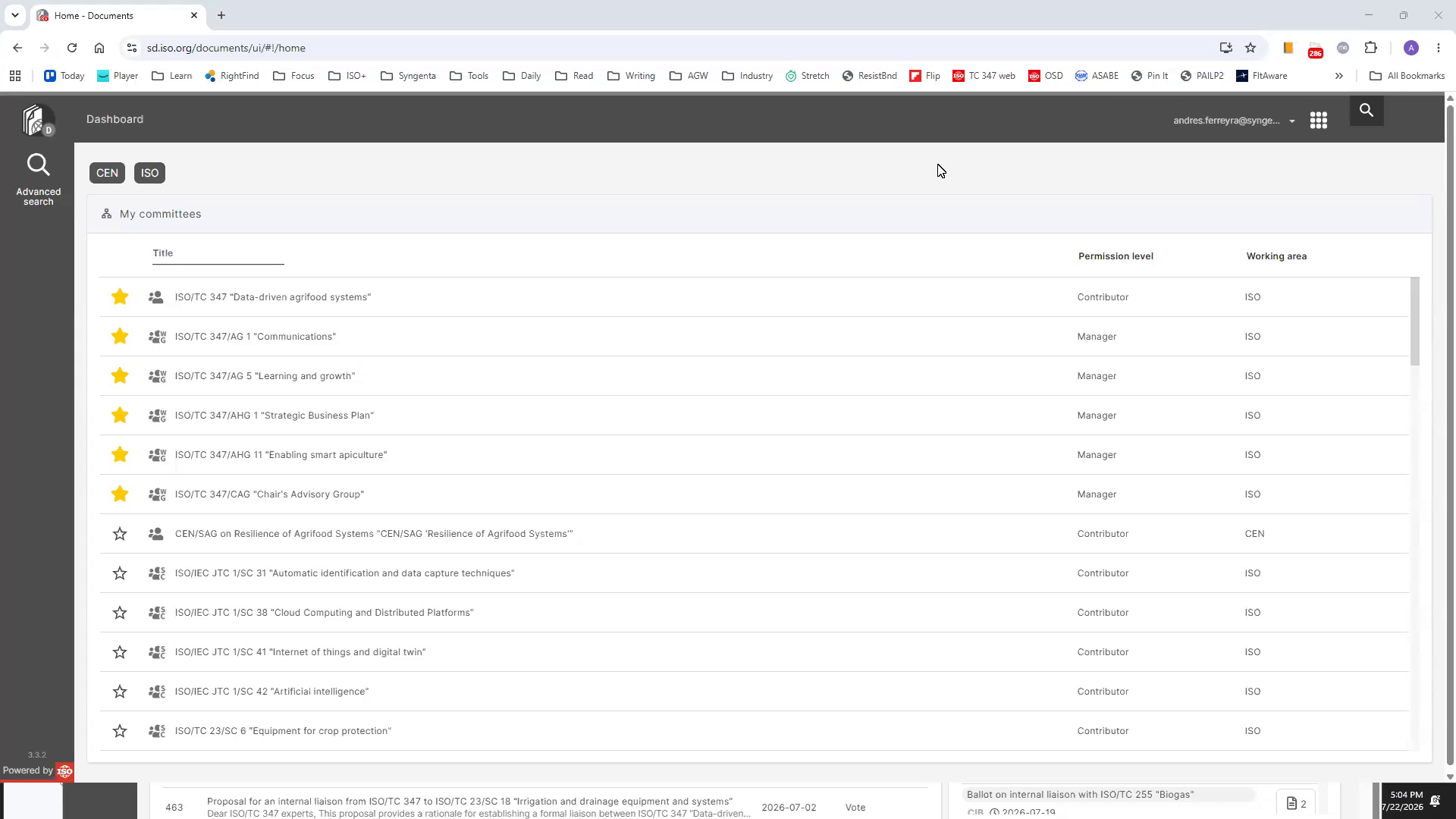
2Select the committee you are interested in, ISO/TC 347 "Data-driven agrifood systems" in our case.
This picks the technical committee to work with.
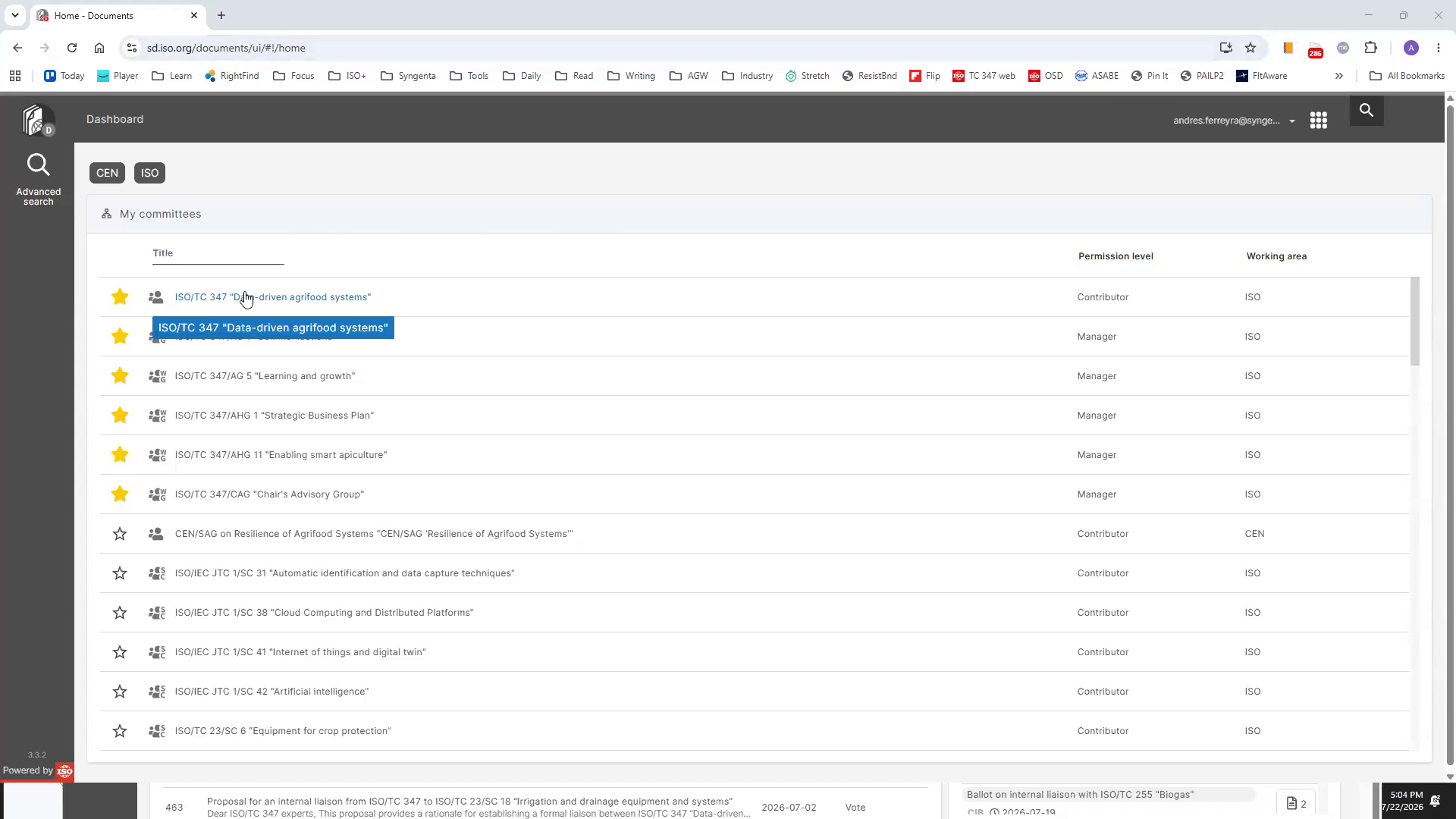
3Select "Committee Structure" on the ISO/TC 347 page
This lets you pick the Working Group of interest.
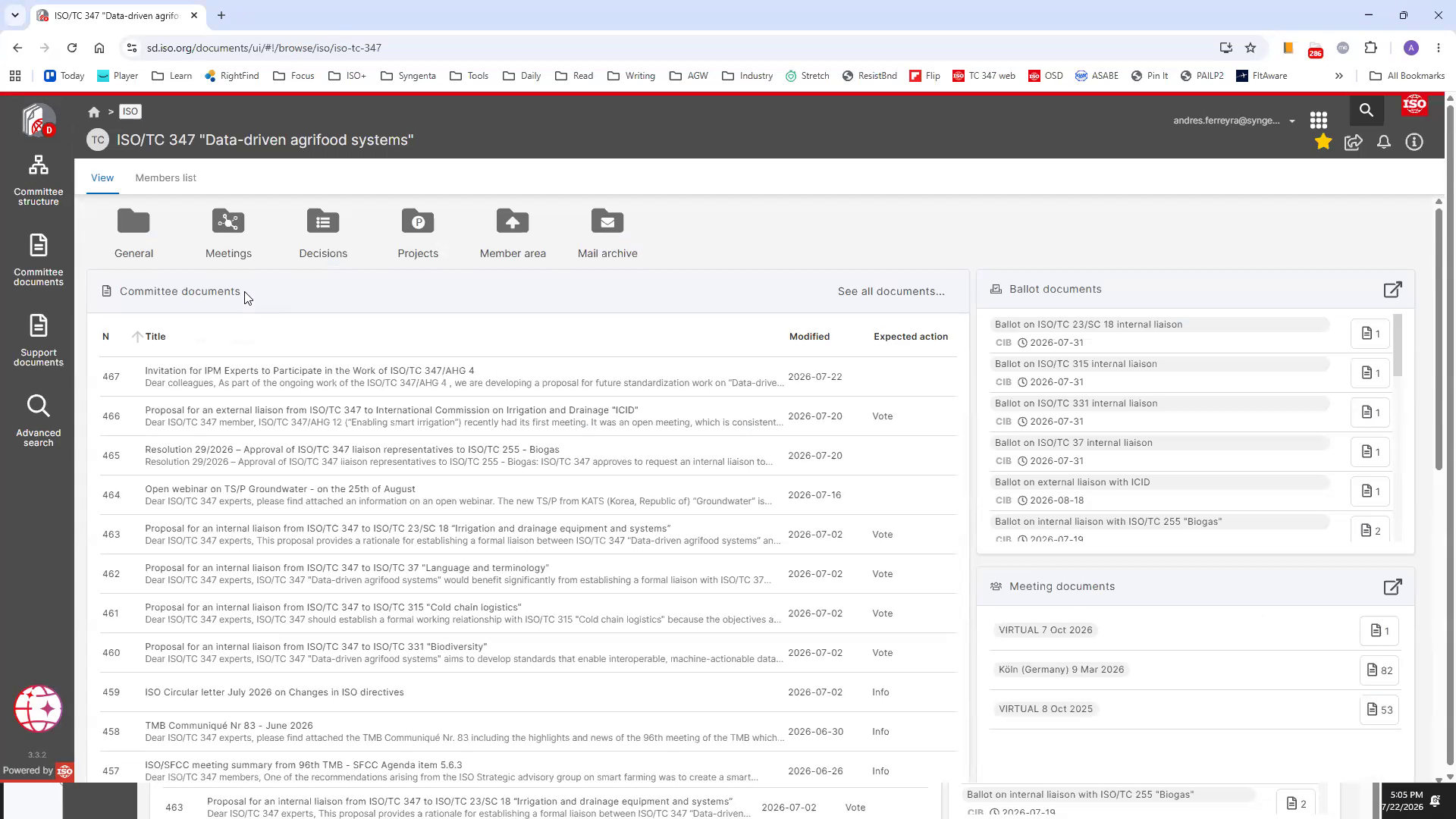
4In our example, click "ISO/TC 347/WG 1" (Agrisemantics) under "Committee Structure"
This opens the Working Group 1 page with documents.
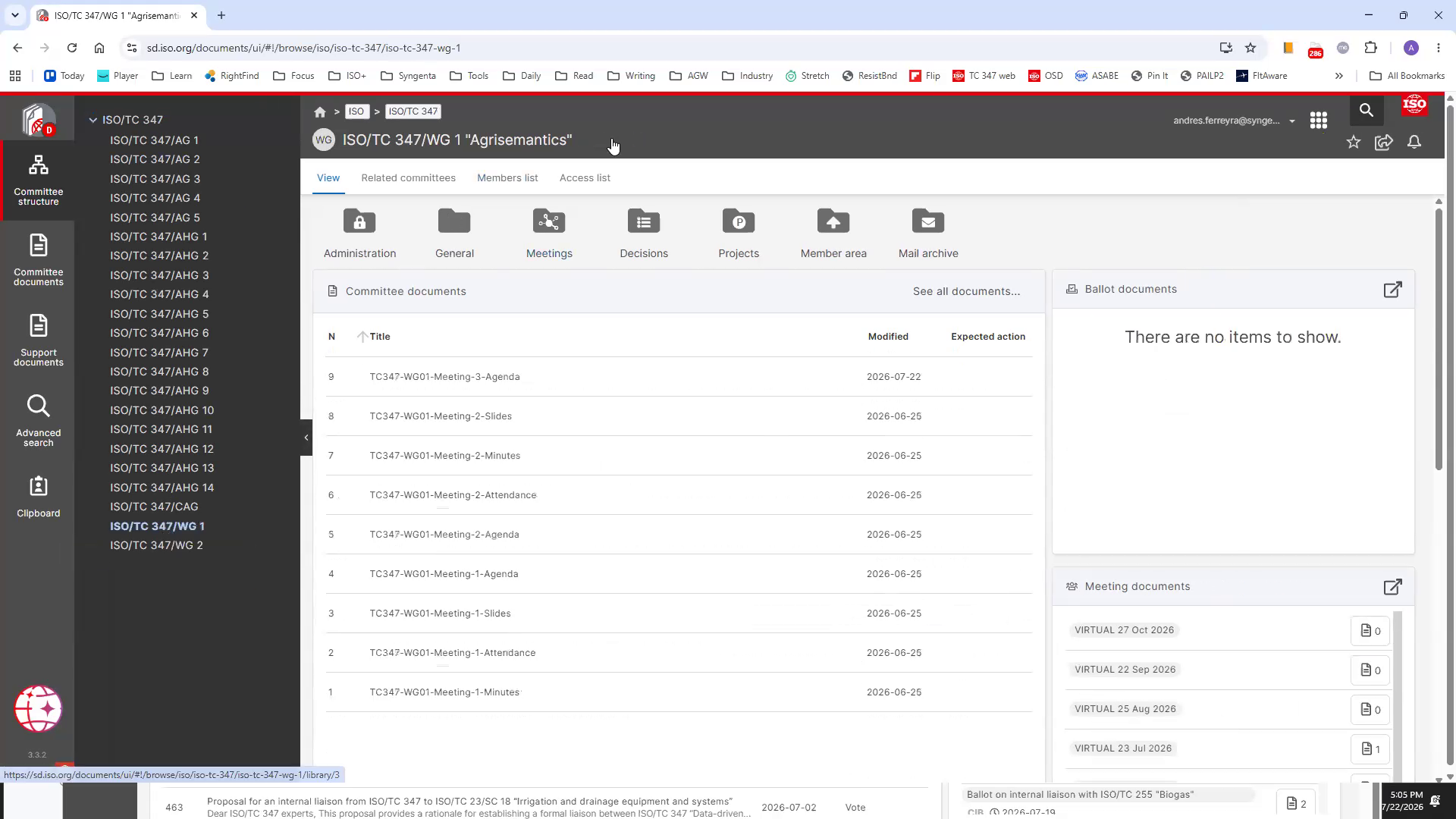
5Scroll to the bottom right to view Online documents
The online documents section lists standards owned by the Working Group.
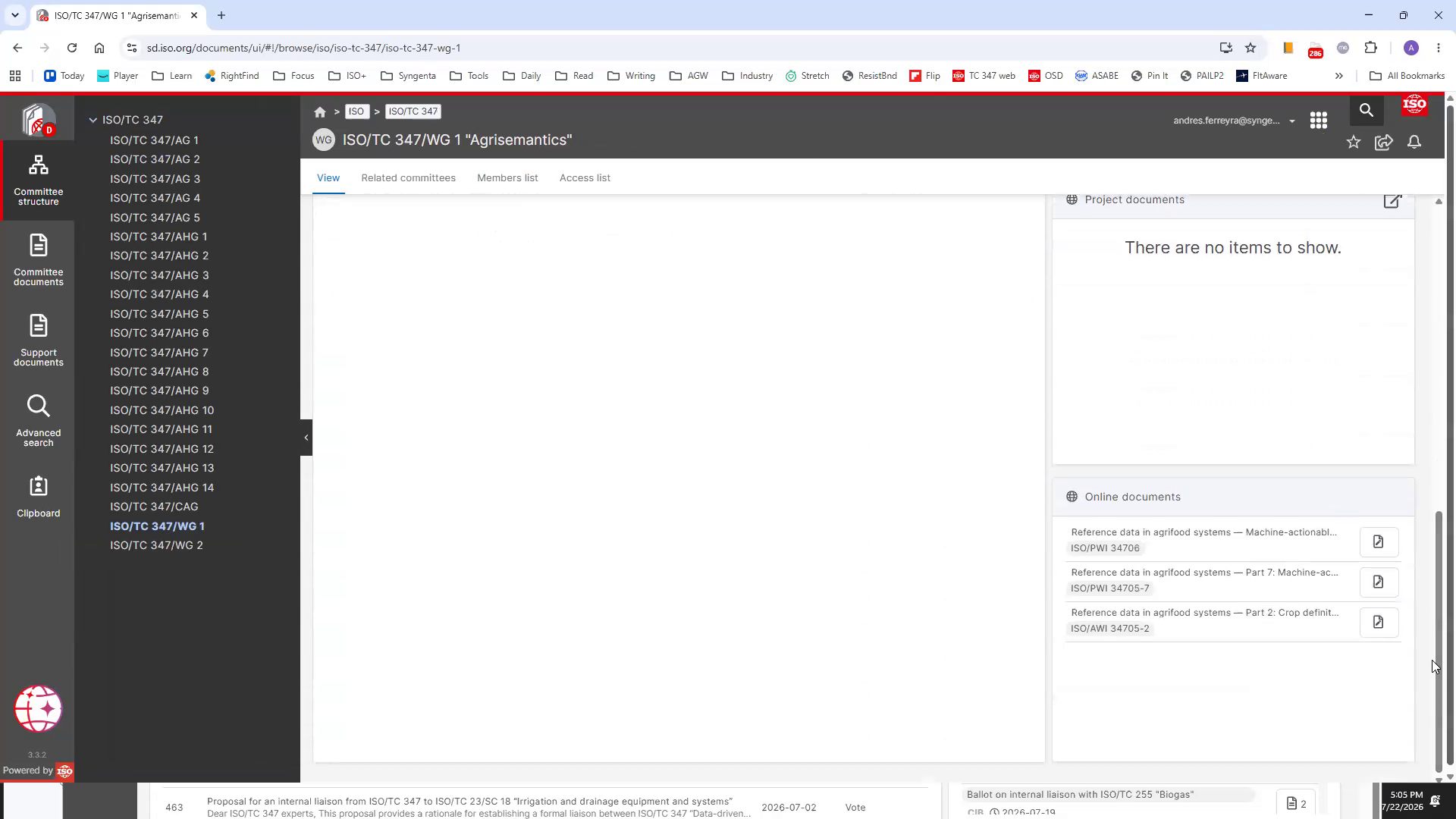
6Click the "Access document" icon for "ISO/AWI 34705-2 Reference data in agrifood systems — Part 2: Crop definition"
This opens the document in a new tab in the projects interface.
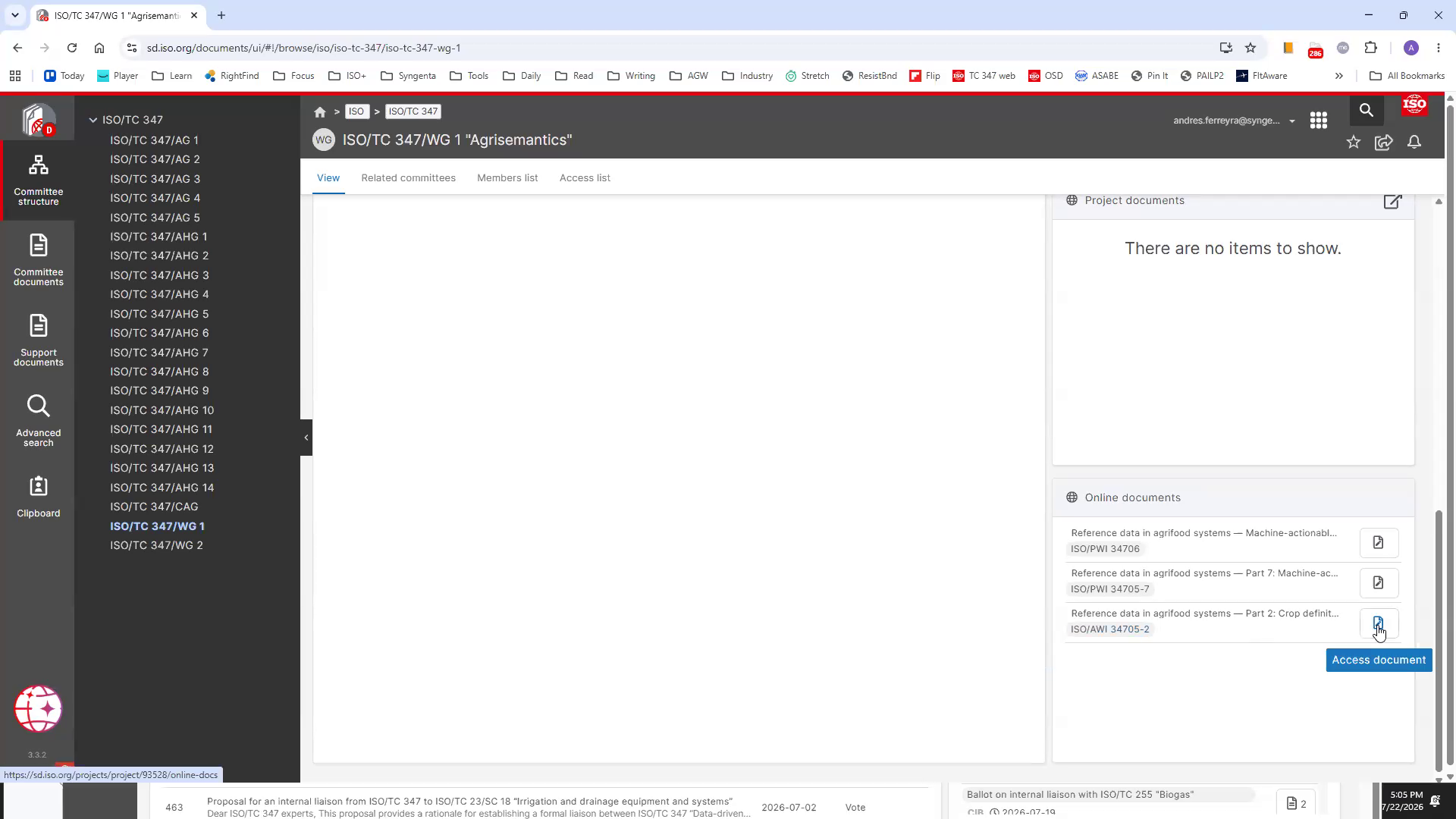
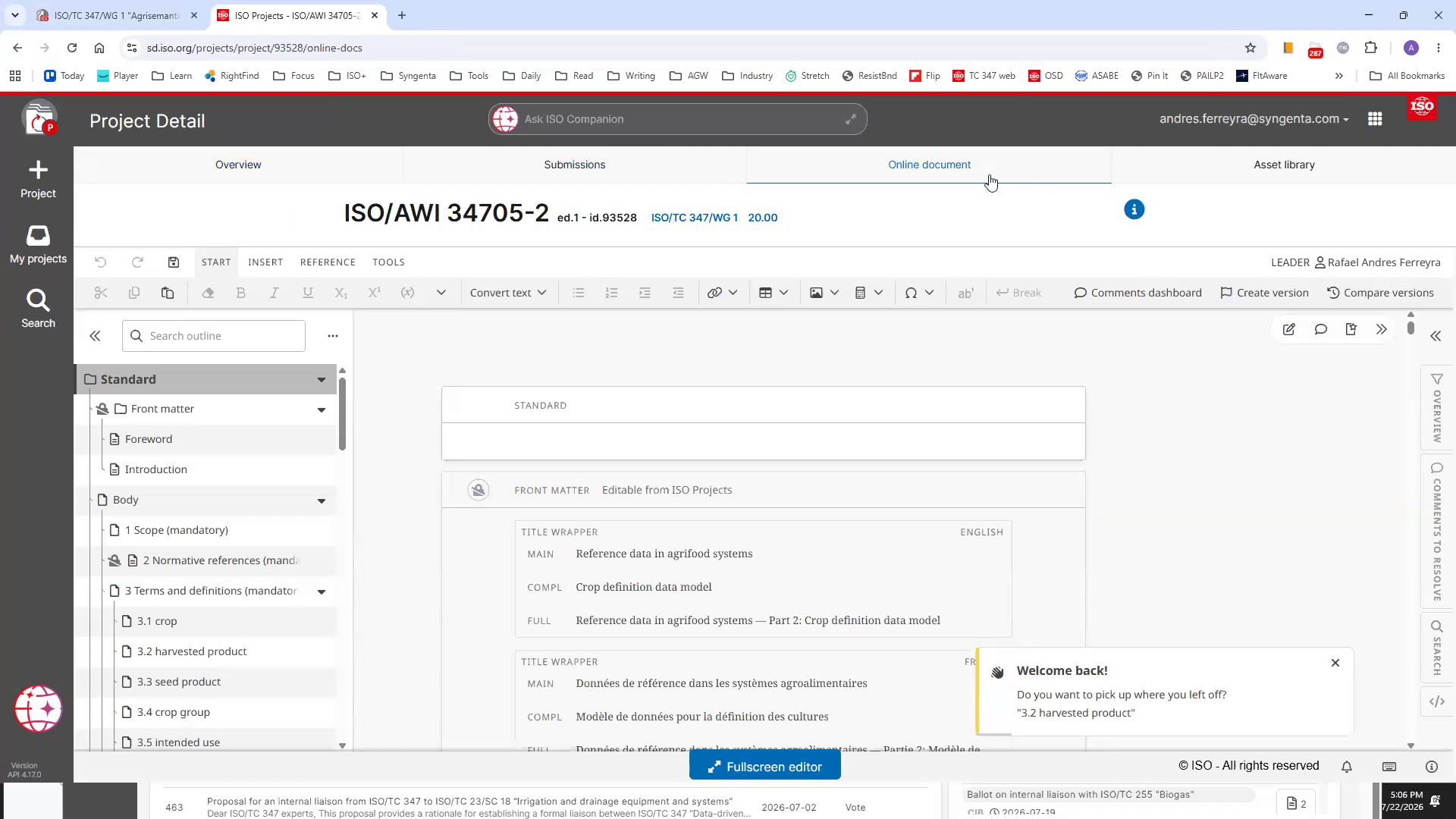
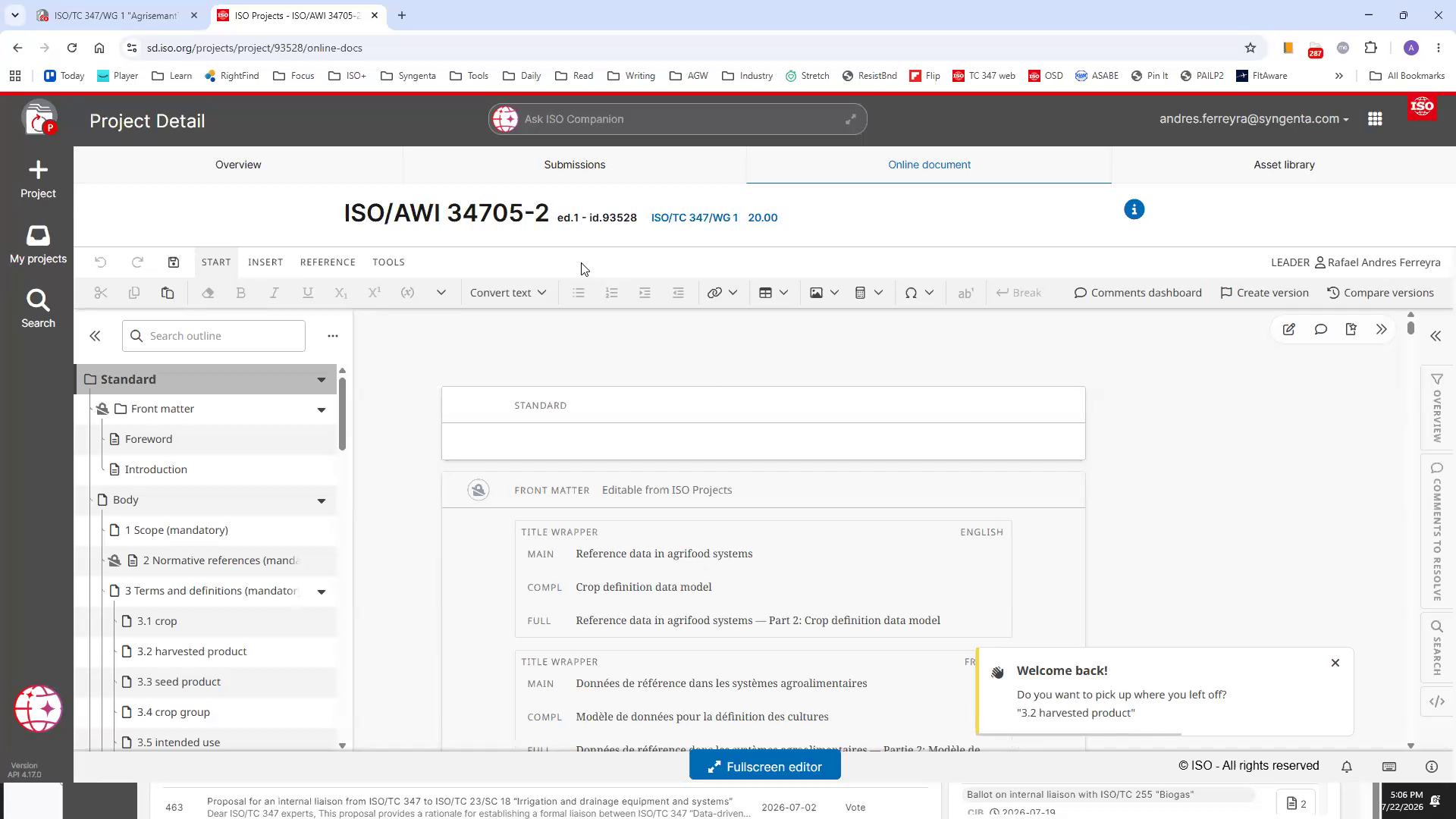
7Note the tabs Overview, Submissions, Online document, and Asset library in the project interface
These tabs organize different aspects of the project.
8Let's take a little detour: click "Tools" in the Online document tab
We'll show you how to save a Word-format version of the document on the OSD.
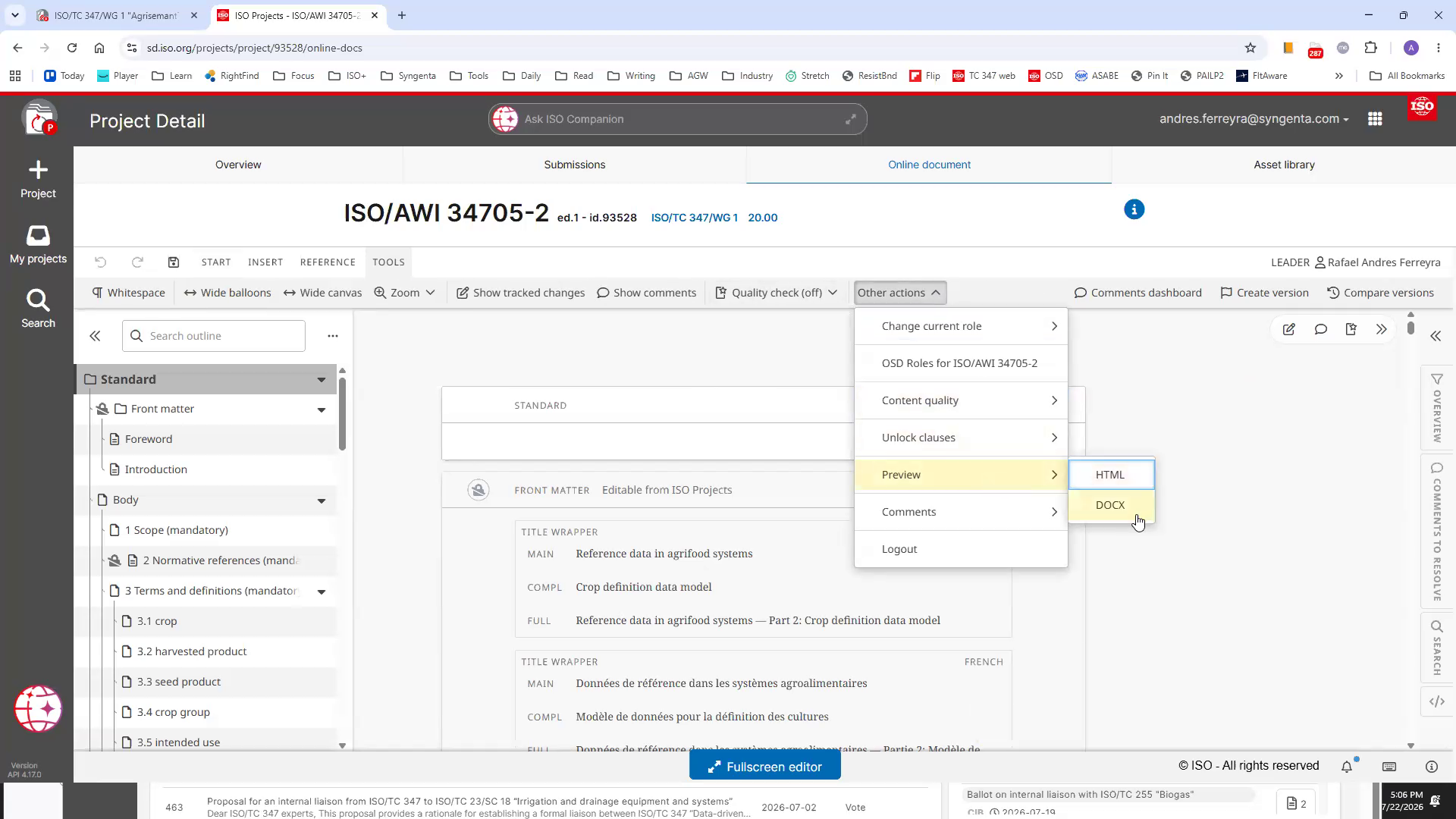
9Open "Other actions", then "Preview", then select "DOCX" export
This exports the document as a Word file for offline reading.
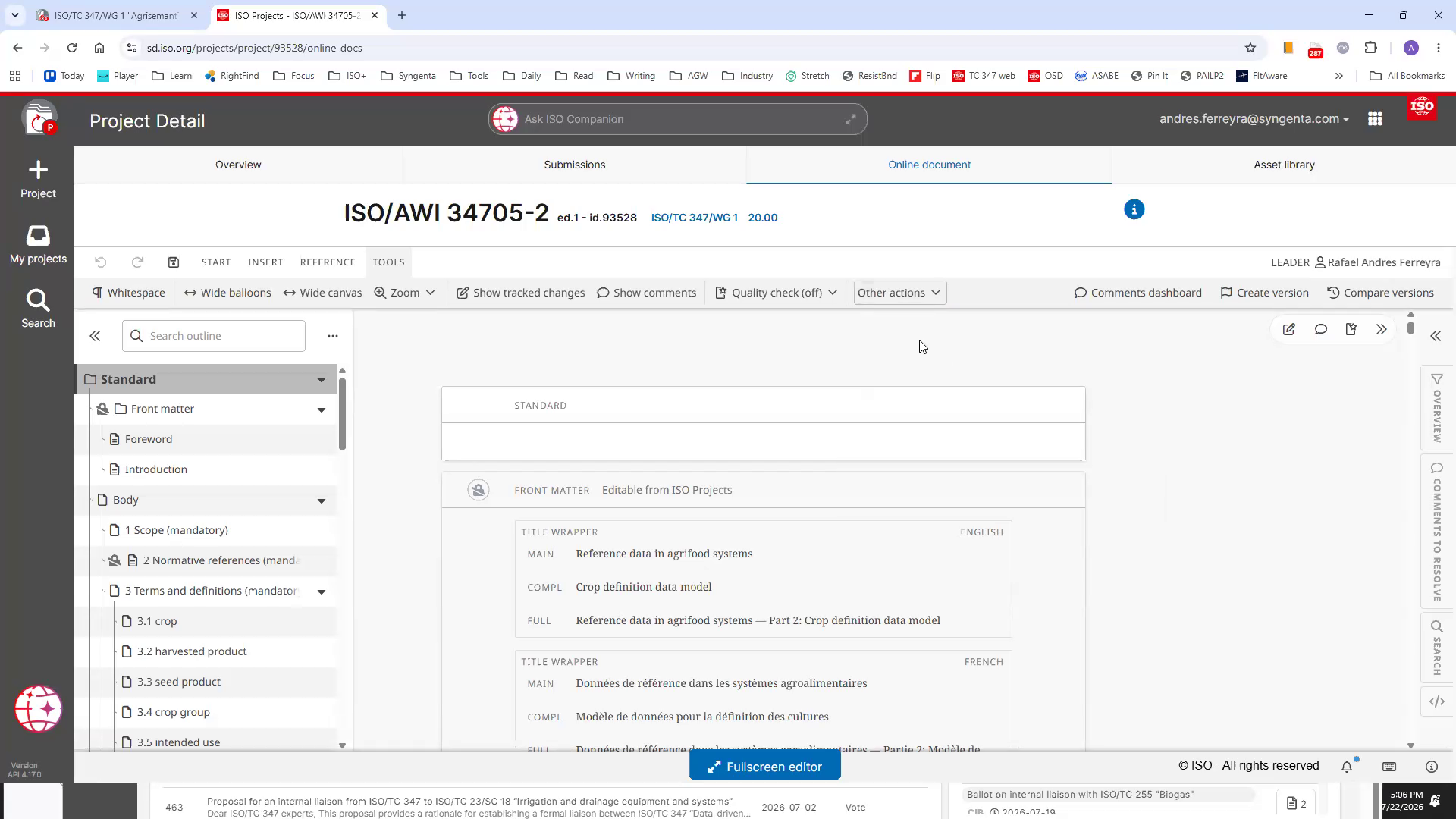
10Back to entering comments, all changes and comments are made within this user interface.
The interface includes tabs (we want to stay in "Online document"), a toolbar, a document map on the left, the content in the center, and more tools on the right.
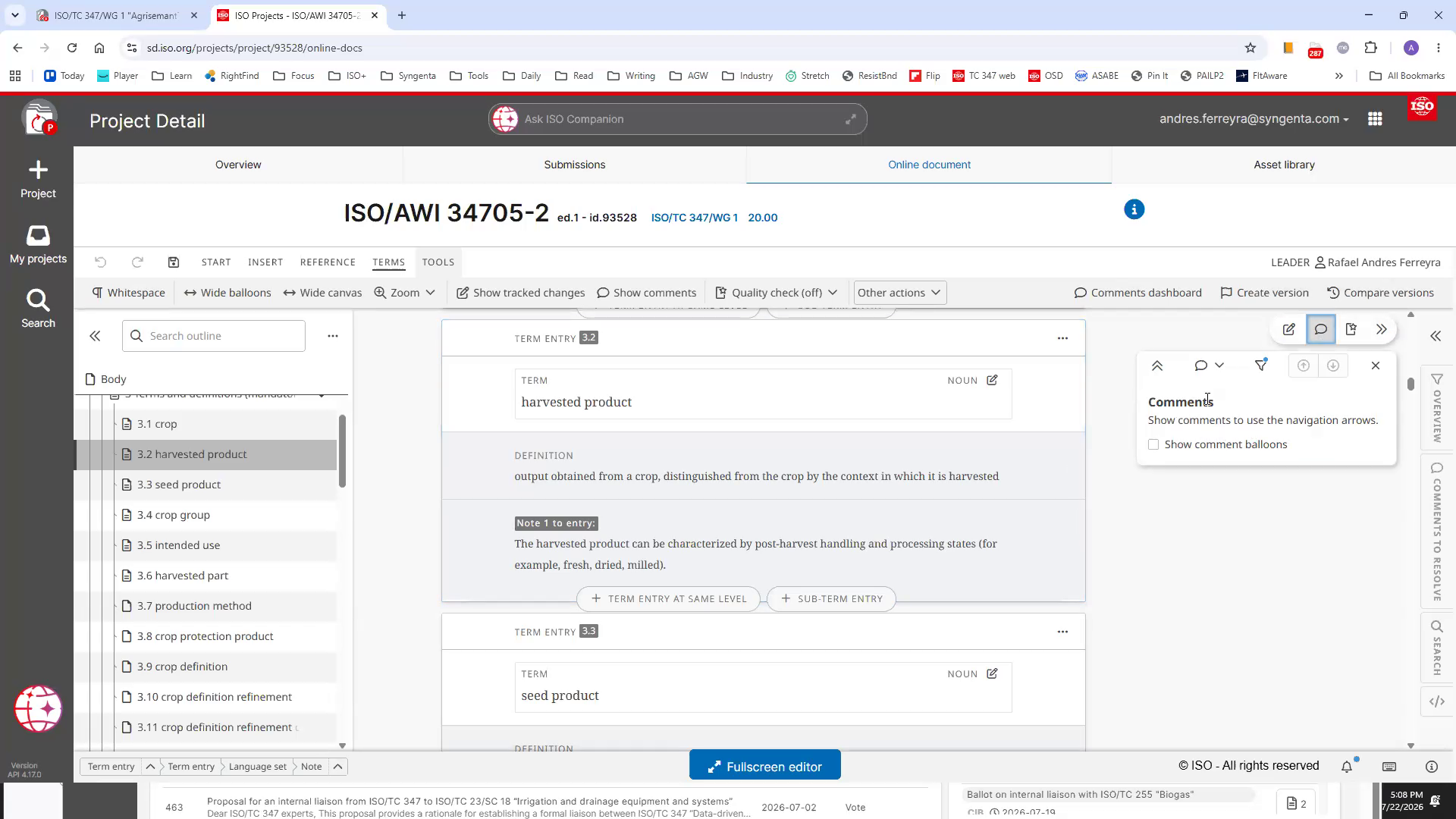
11Open Comments Navigator by clicking its icon on the right.
This opens the comments panel on the right side and prepares the system to work with comments.
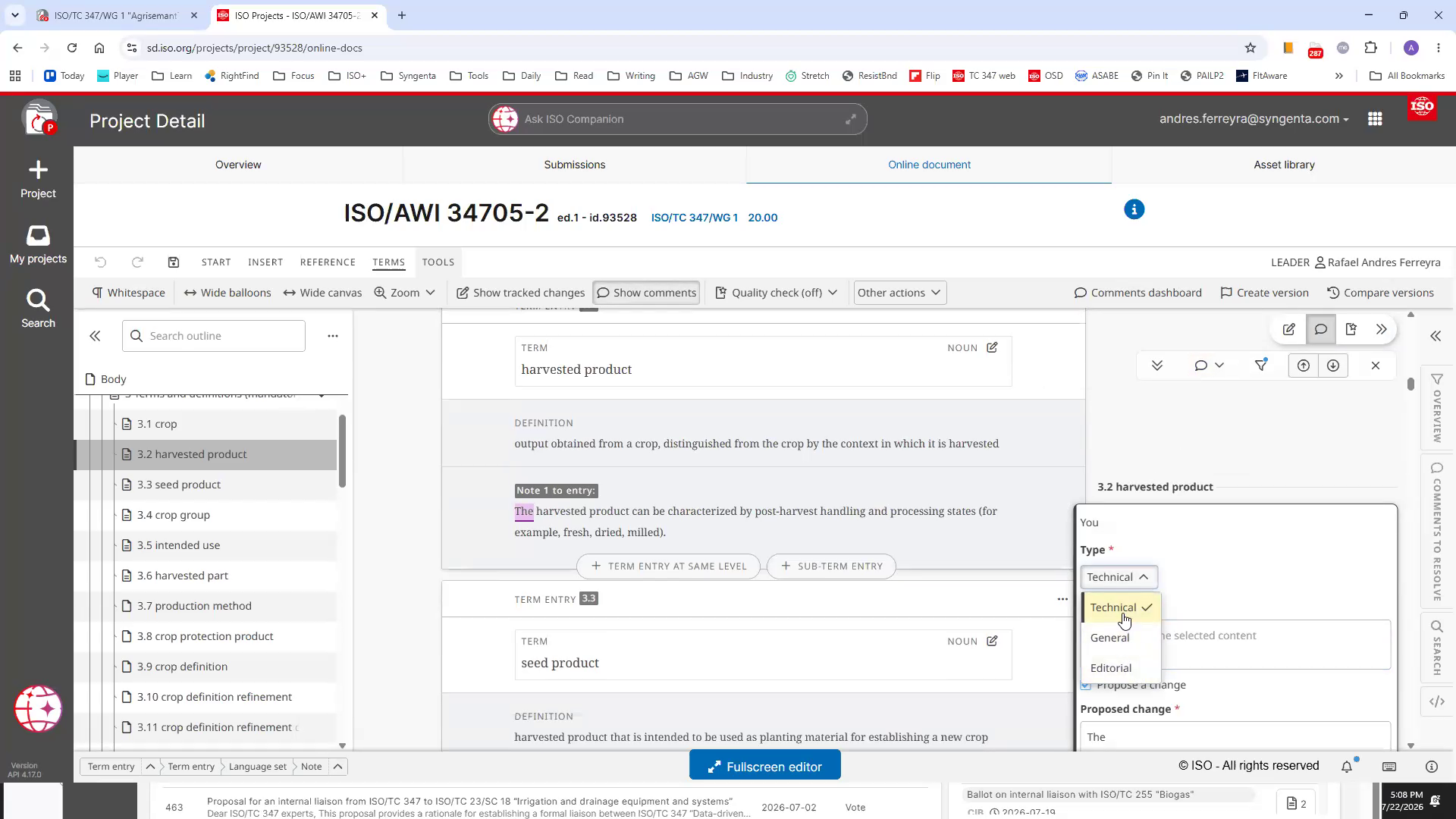
12Select text to comment on, then click the New comment icon to make a comment on the selected text
Note how a dialog pops up for you to enter the comment and some metadata. You can comment on specific document content, or on the document as a whole. We'll discuss specific comments here.

13Choose the comment type: Technical, General, or Editorial
Technical comments add, remove or modify requirements (Please handle those with care!); editorial comments address wording, meaning and understanding; general comments cover other feedback.
14Fill in your comment text explaining your feedback
Provide clear reasoning or suggestions related to the selected text.
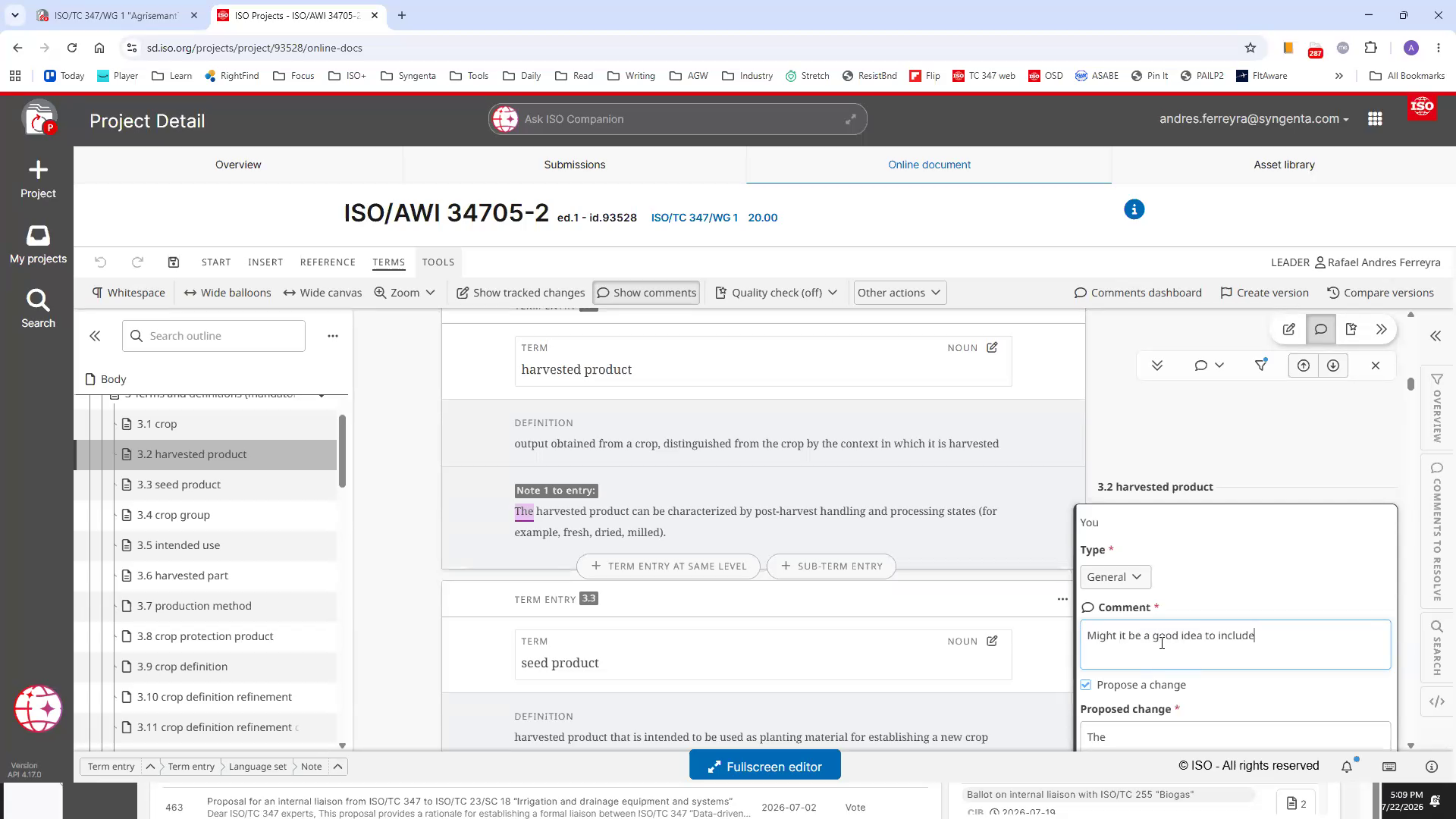
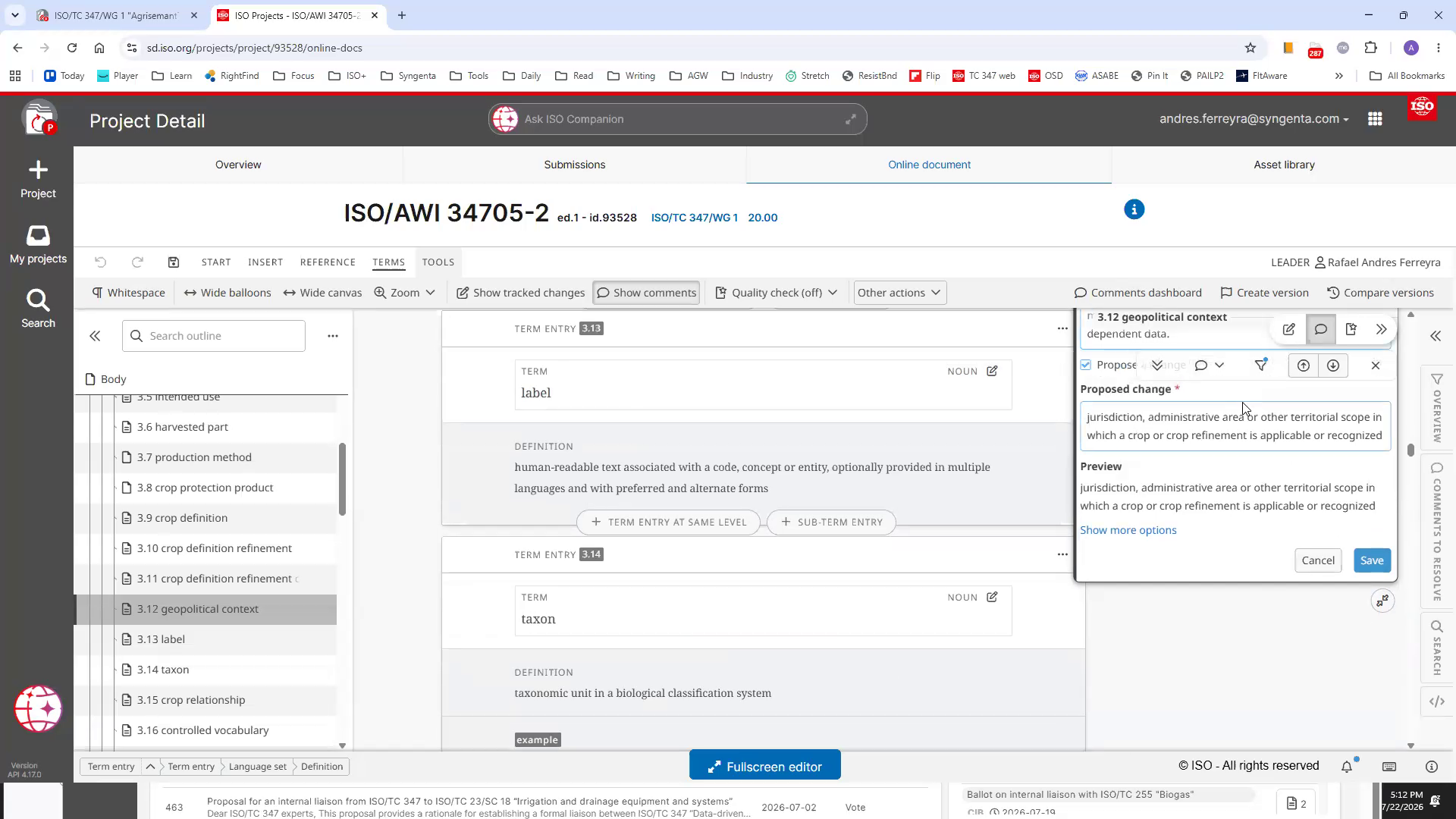
15Optionally, propose a specific change in the Proposed change field
Proposing exact wording helps clarify your suggestion. This is much preferred to making comments without specific suggestions.
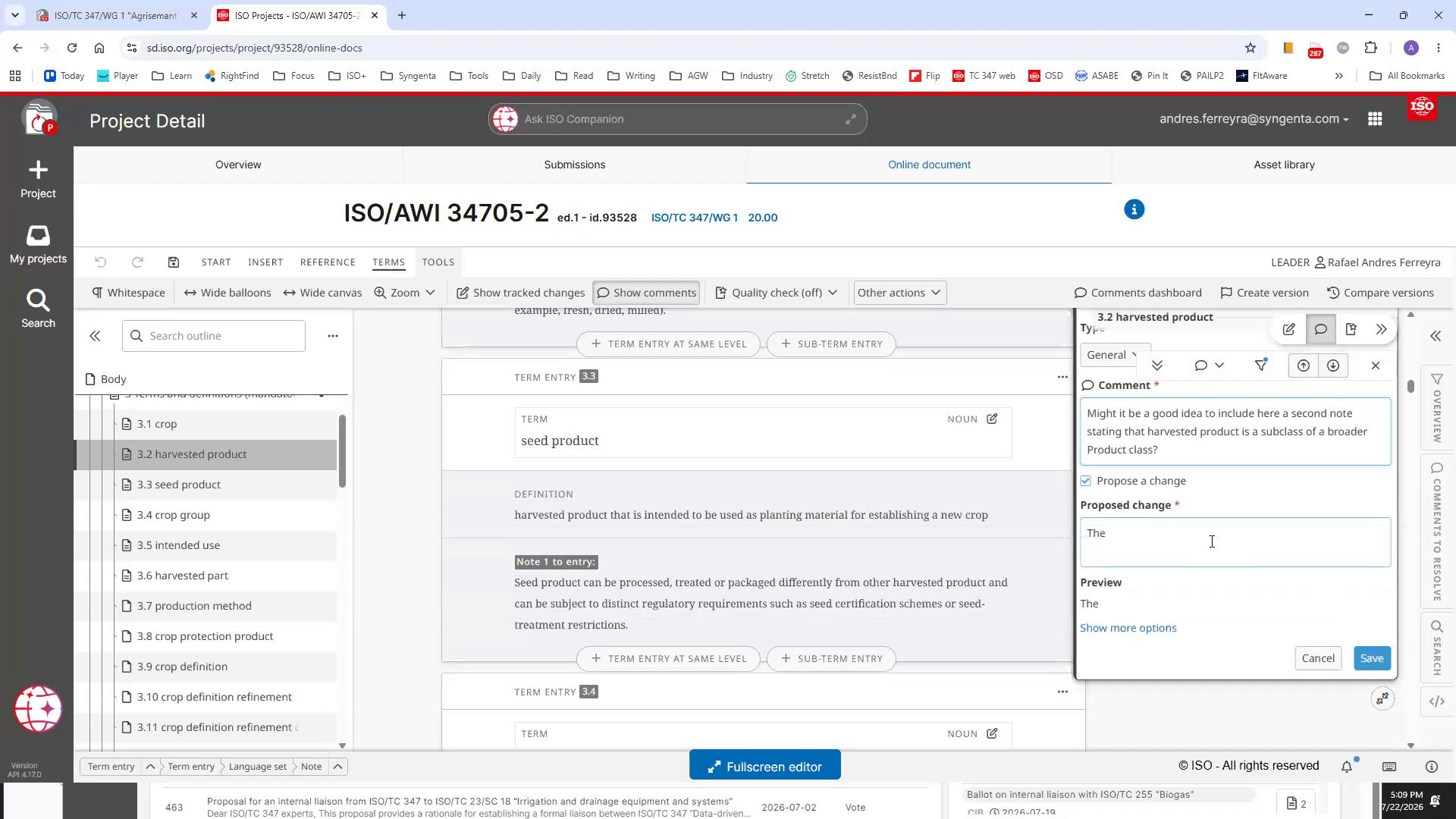
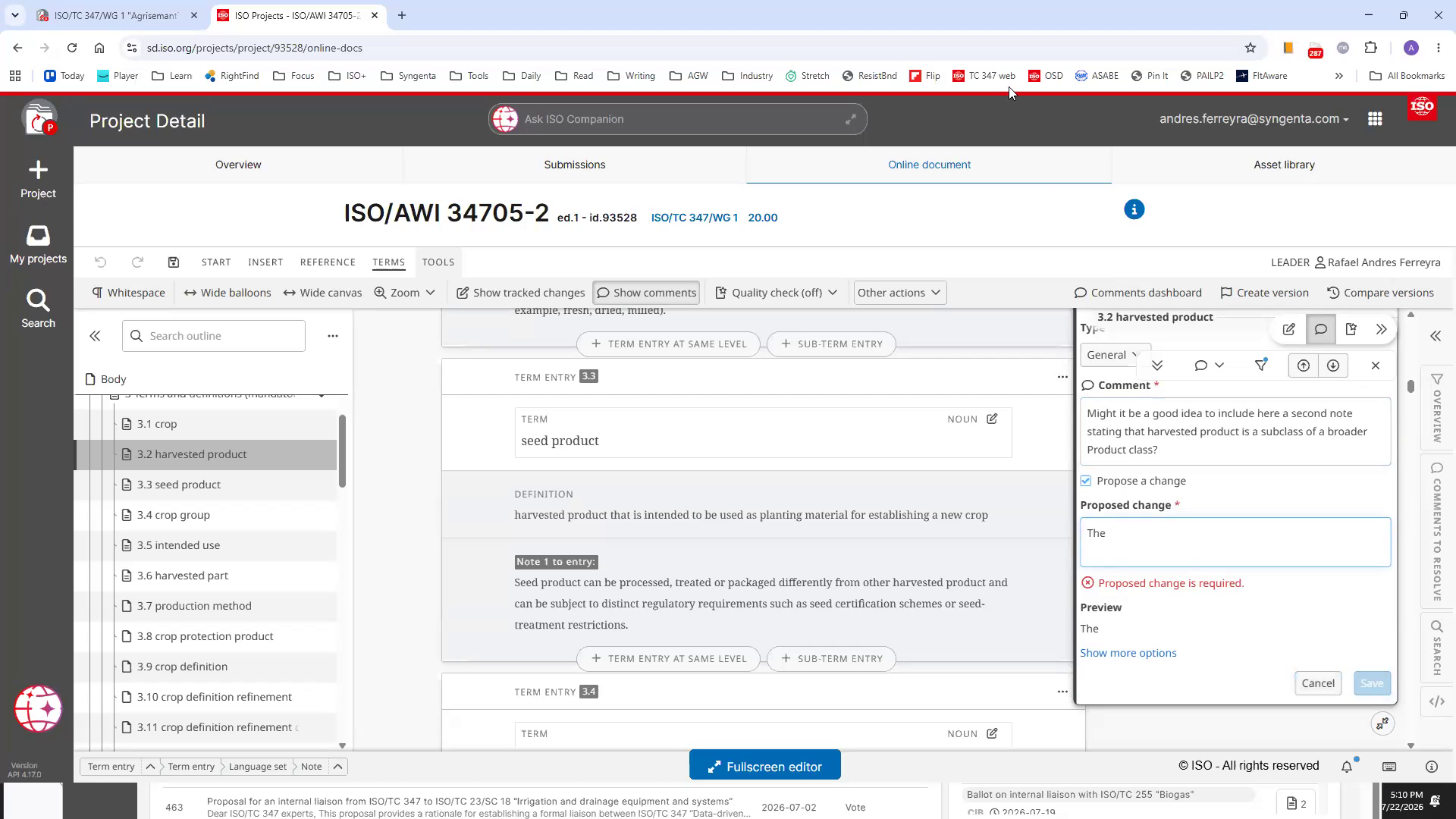
16Uncheck 'Propose a change' if you are only commenting without suggesting text
This avoids validation errors when no proposed change is entered.
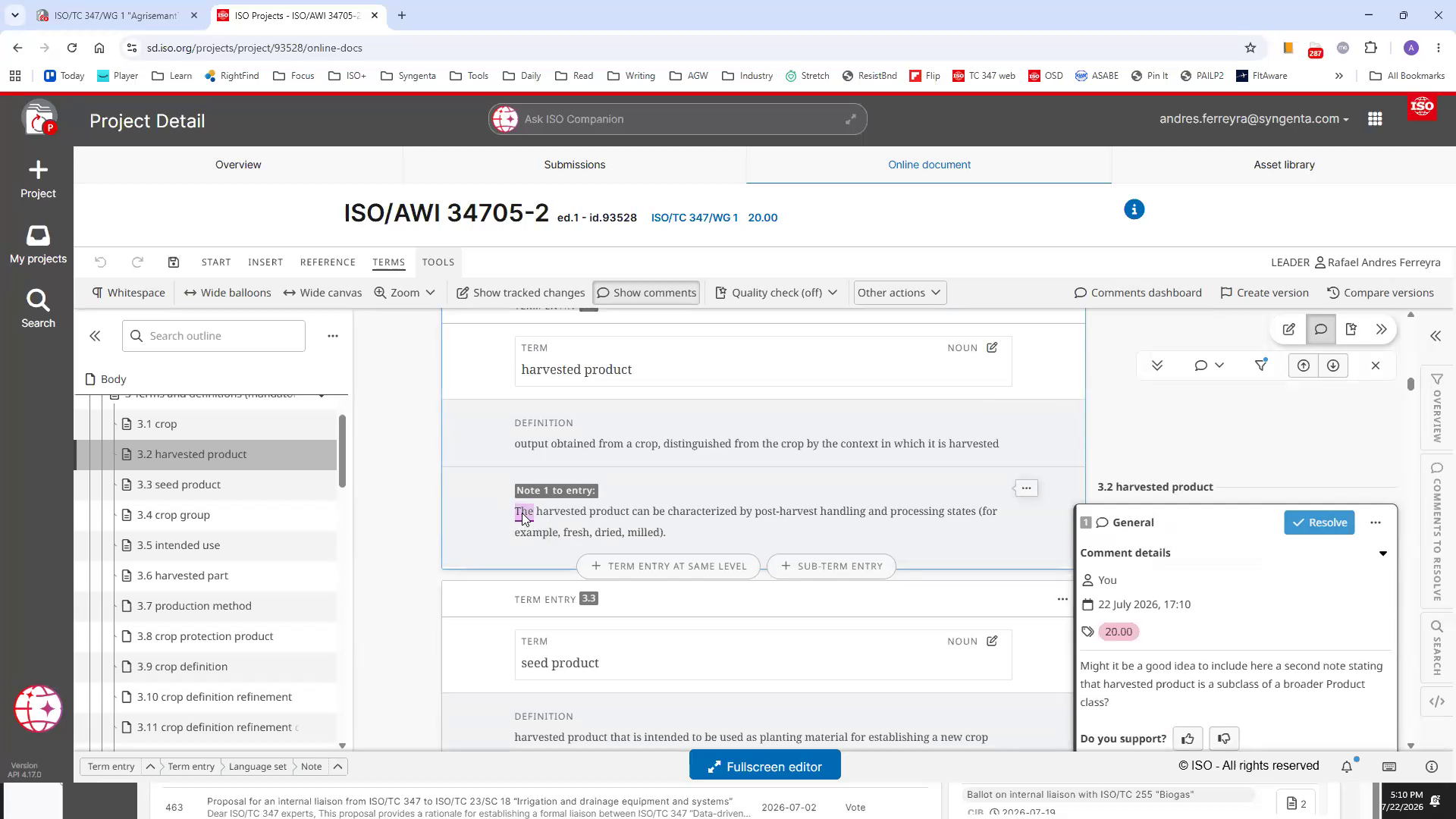
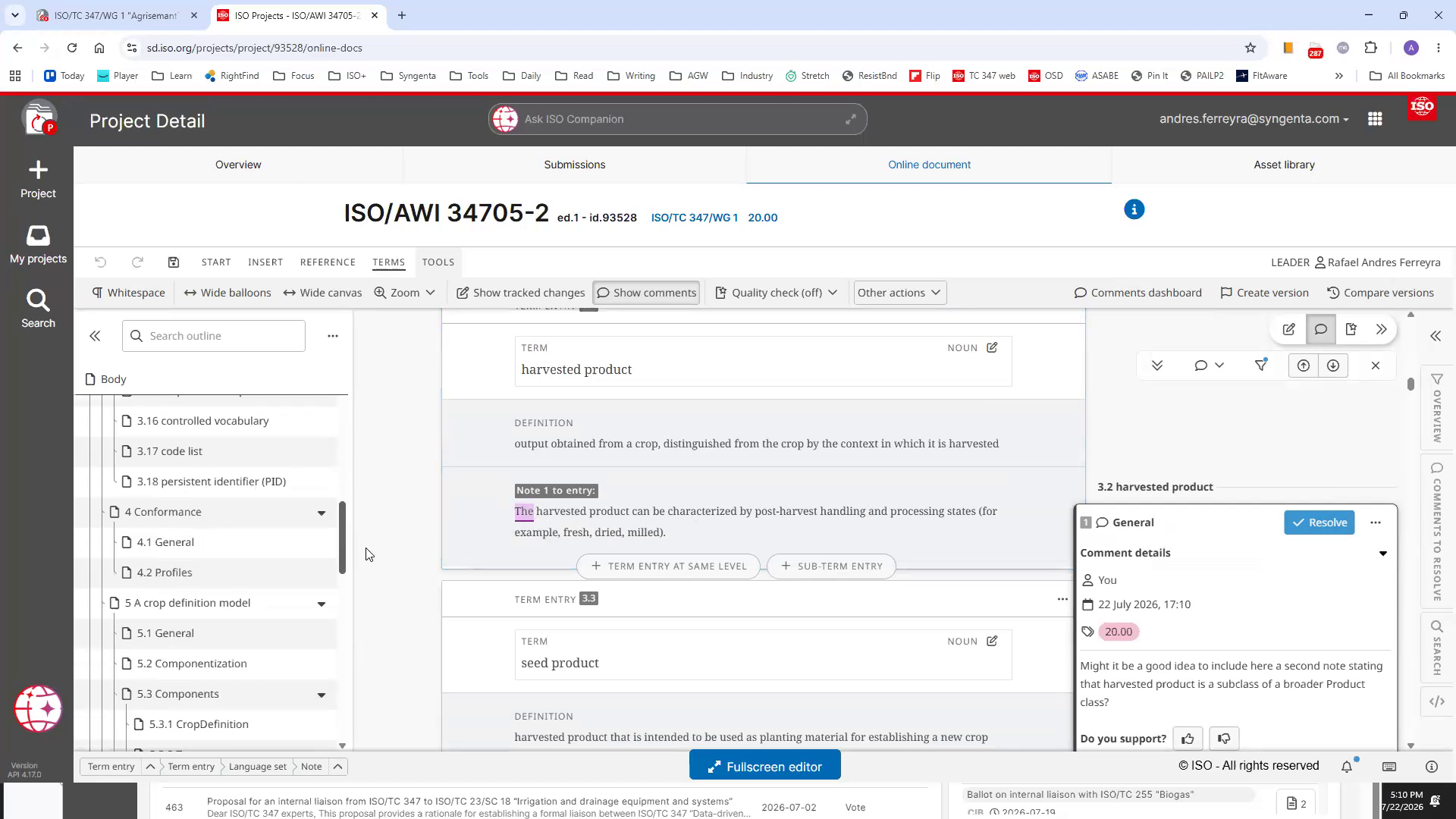
17View your comment as a balloon attached to the relevant term entry
Comments are visually linked to document content.
18Open Comments Navigator to add another comment on a different term
You can comment on multiple parts of the document.
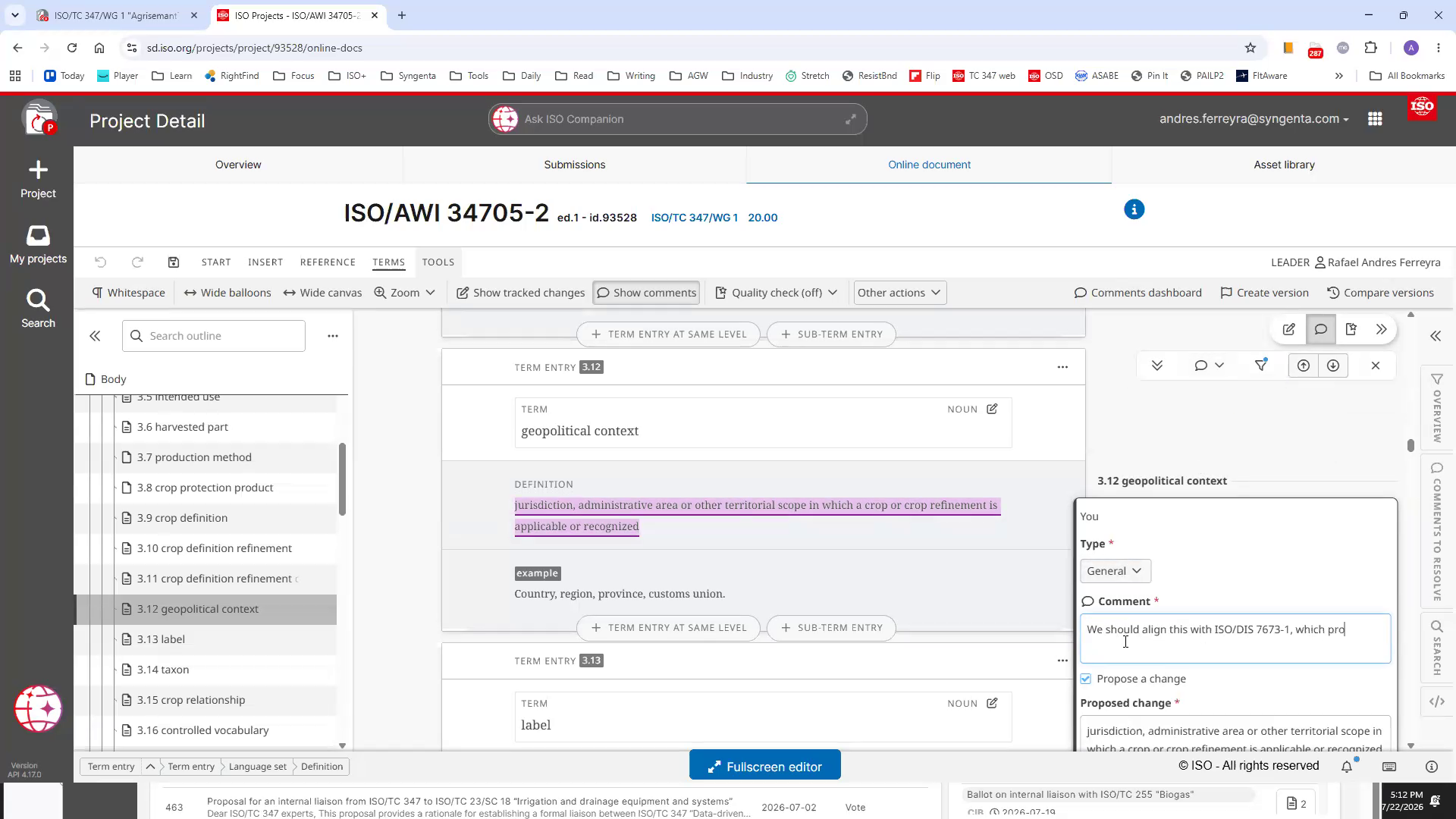
19Here is an example of entering a comment about aligning a definition with ISO/DIS 7673-1
This comment suggests referencing an external standard for clarity.
20Click Save to submit your comment
The comment will appear attached to the selected text.
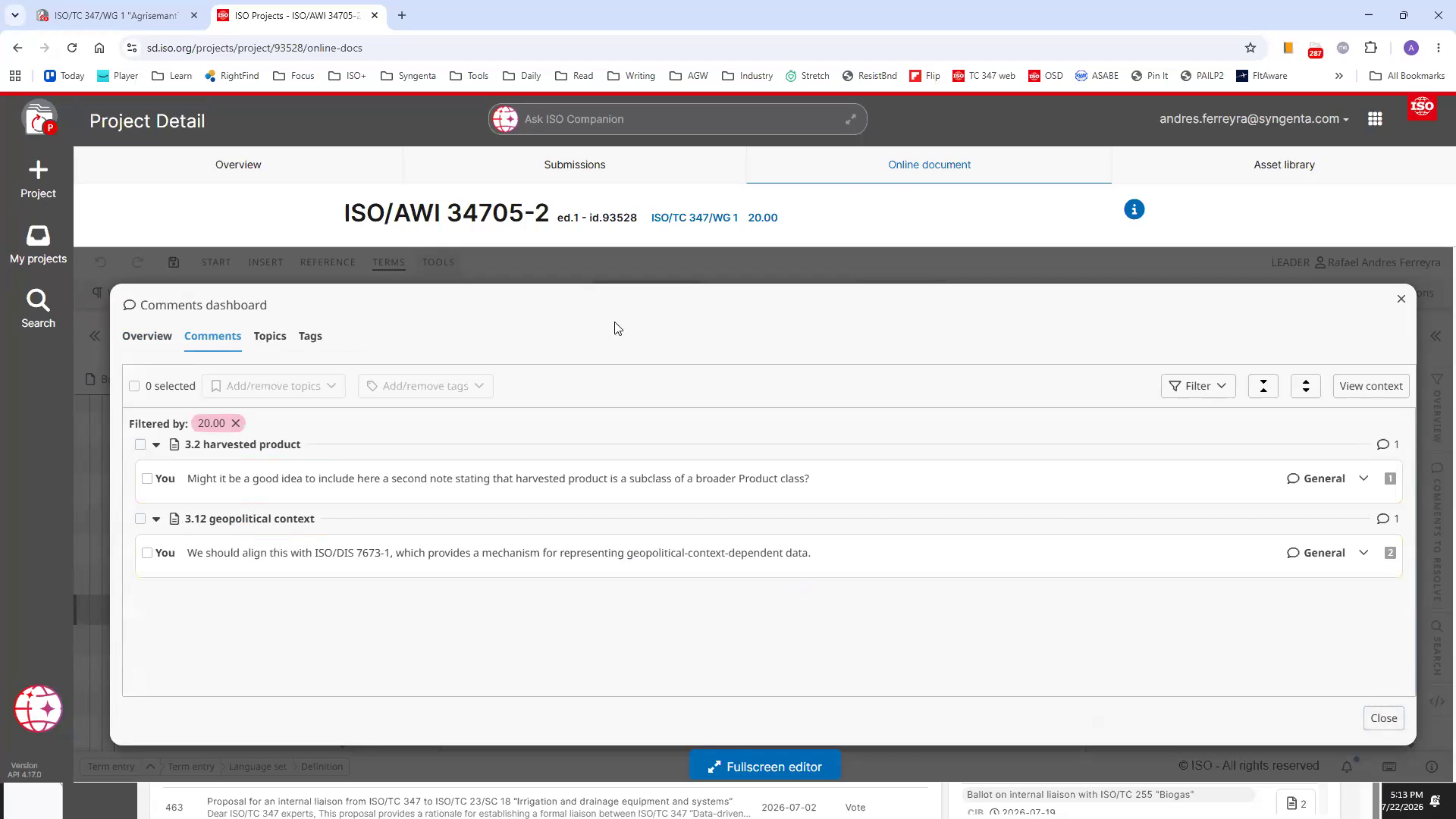
21Click Comments dashboard to see an overview of all comments and proposed changes
The dashboard summarizes comments by clause and topic.
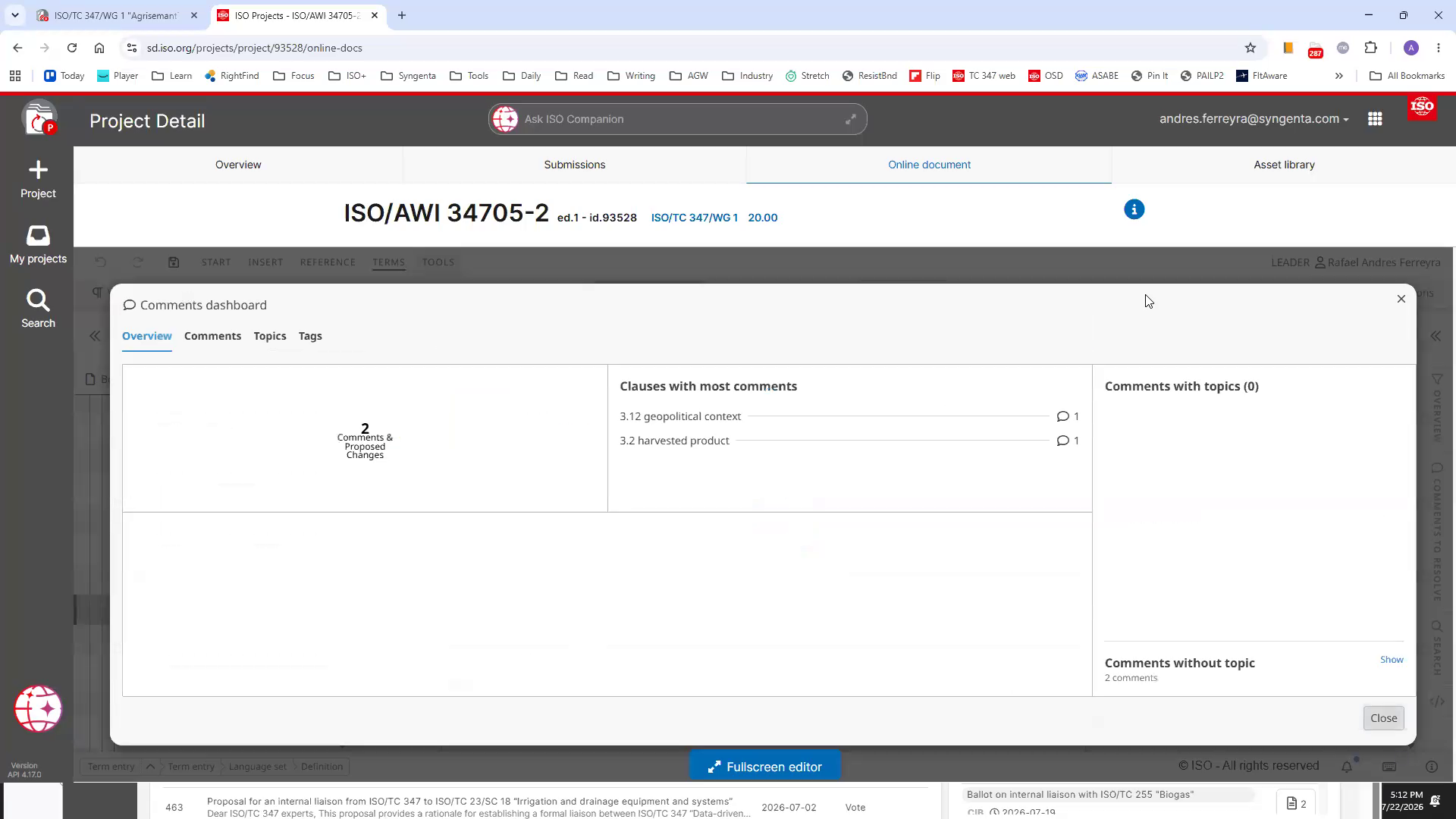
22Review the list of comments filtered by document section
You can see comments grouped by terms or clauses.
Downloads
Get a PDF version of the guide →
Published: July 2026 | Edition: 1